 Documentation
Use Google Tag Manager when the site already loads tags through a GTM container and you do not want to edit the page template.
This installs the same browser script as JavaScript Installation: cm_v2.min.js.
Before you start
You need:
- a published GTM container snippet on the site
- permission to create and publish tags in that container
- your Convertmax API key
Install the script once. If the page template already includes the Convertmax loader, a second copy in GTM sends duplicate events.
Create the tag
- In Google Tag Manager, open the container and go to Tags.
- Select New.
- Name the tag
Convertmax. - Under Tag Configuration, choose Custom HTML.
- Paste the loader below. Replace
YOUR_API_KEYwith your Convertmax API key. - Under Triggering, choose the built-in All Pages trigger. That fires on the page view, once per full page load.
- Save the tag.
<script type="text/javascript" id="convertmax_loader">
  (function(w, d) {
    var e = d.createElement("script");
    e.type = "text/javascript";
    e.async = true;
    e.src = "https://cdn.convertmax.io/cm_v2.min.js";
    var s = d.getElementById("convertmax_loader");
    s.parentNode.insertBefore(e, s);
    w.__convertmax_q = w.__convertmax_q || [];
    w.Convertmax = w.Convertmax || function() {
      w.__convertmax_q.push(arguments);
    };
  })(window, document);

  window.addEventListener("convertmaxLoaded", function() {
    window.Convertmax.config({
      apiKey: "YOUR_API_KEY",
      eventURL: "https://event.convertmax.io",
      debug: false,
      autoPage: true
    });
  });
</script>
Leave Support document.write unchecked. This loader inserts the script with document.createElement and does not use document.write.
autoPage: true sends the first page_view when the tag runs. Set eventURL to https://event.convertmax.io unless you are using a branded tracking host. Set debug: true while you validate, then set it back to false before the production publish.
Consent
If the container uses Consent Mode, open the tag’s Advanced Settings → Consent Settings and require analytics_storage before the tag fires. The loader should not run until analytics consent is granted.
Send a custom event
Add a second Custom HTML tag for the event, and give it the trigger for that action (for example a click trigger). In that tag, open Advanced Settings → Tag Sequencing and set Fire a tag before this tag fires to Convertmax, so window.Convertmax exists before the call:
<script>
  window.Convertmax.track("click", {
    target: "hero_cta",
    page: window.location.href
  });
</script>
See JavaScript Installation for the other window.Convertmax methods.
Verify, then publish
- Select Preview and open the site.
- Confirm the
Convertmaxtag shows as Fired on the page view. - Confirm
https://cdn.convertmax.io/cm_v2.min.jsloads. - Confirm a
page_viewrequest is sent to your tracking endpoint whenautoPage: true. - Fire one custom event and confirm that request too.
You can validate runtime signals and captured requests with the Convertmax Chrome Extension.
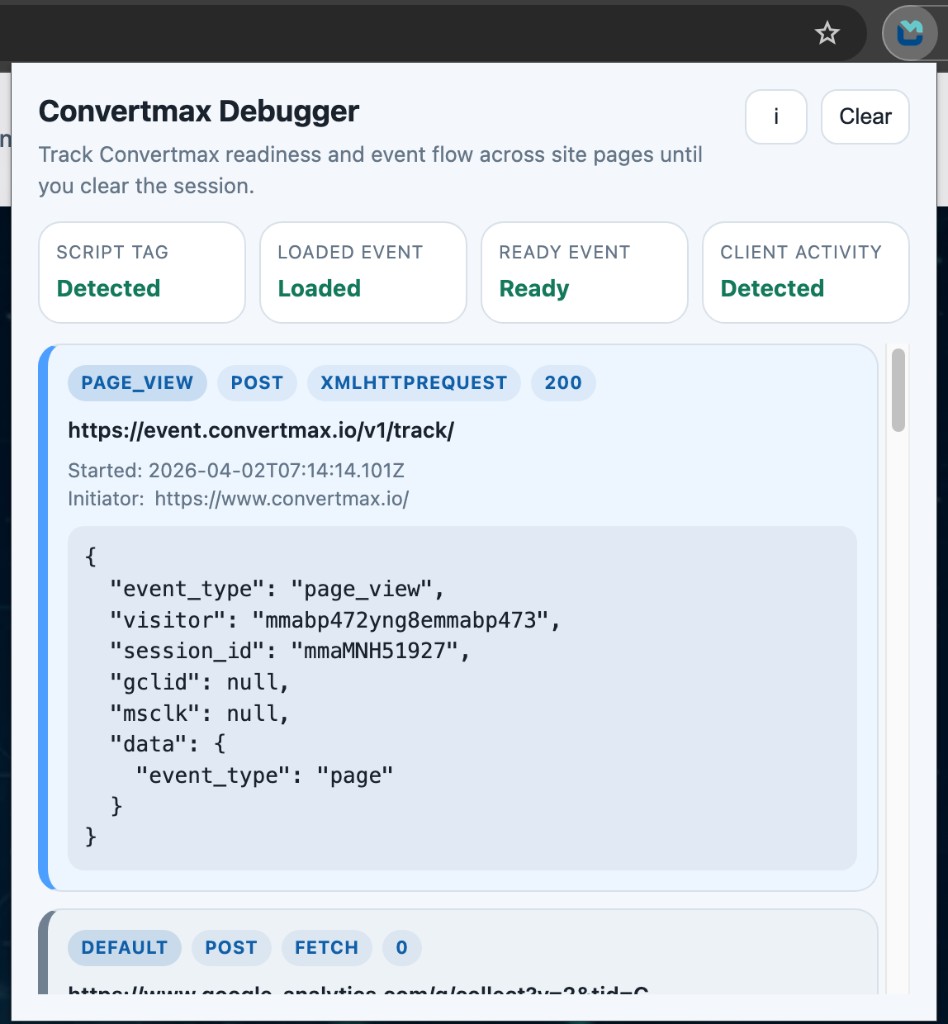
When Preview looks right, select Submit and publish the container version. Unpublished tags do not run for visitors.